
How do I connect GovInbox to ChatGPT?
Published
You subscribed. Good. Now you want to ask GovInbox questions inside ChatGPT, in plain words, without opening another tab.
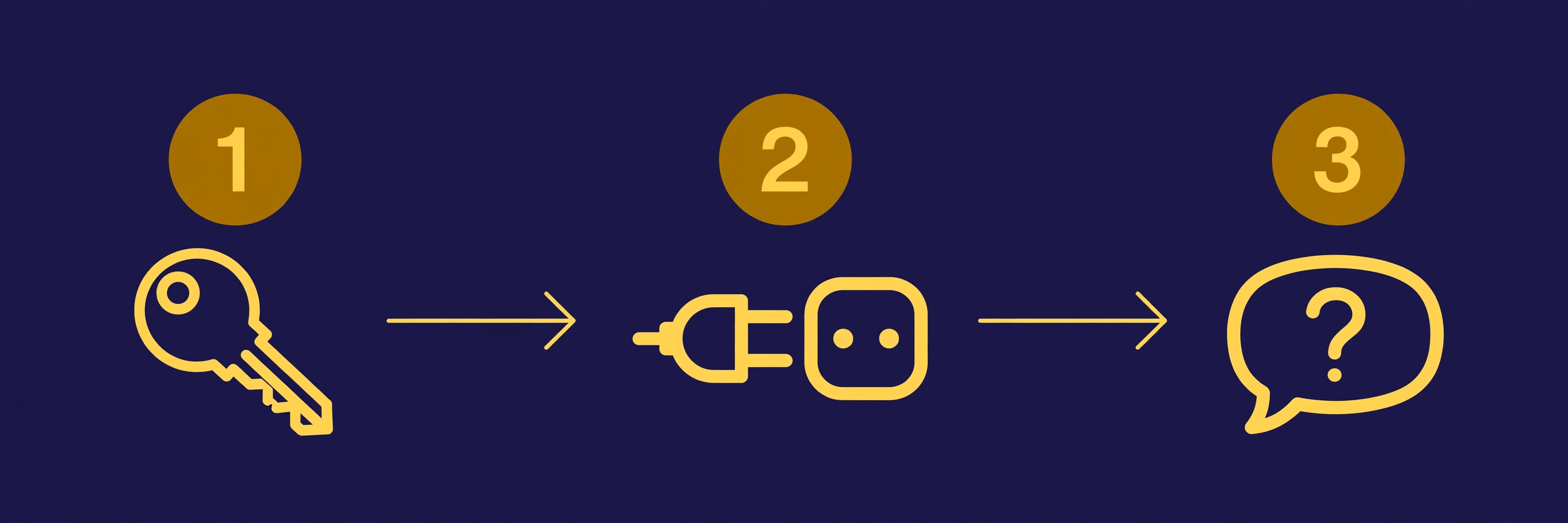
Three steps stand between you and that. The clicks take a few minutes. On a work account, your workspace settings may add a step.
Step 1: Subscribe and keep your token private
When you subscribe, GovInbox sends a welcome email with your access token. That token is the key to your account. Keep it private, the way you would a password.
Here is the one rule that matters: keep the token in a password manager. Do not paste it into chat text. When you add the connector in the next step, ChatGPT opens GovInbox's authorization page. You sign in there, approve access, and ChatGPT handles the rest. The token goes to GovInbox's own page, not into the chat window.
The token still matters. If you ever read your brief in the browser or use the API, that is where it comes in.
Step 2: Add GovInbox as a connector in ChatGPT
First, check your plan. You need a paid ChatGPT plan (Plus or higher). Free plans can't add custom connectors. If the option is missing on your account, the plan is the first thing to check. (As of October 2026. If you're reading this later, OpenAI may have changed which plans can add connectors, and where the menus sit.)
In a Business workspace, an admin or owner must create the connection. In Enterprise or Edu, an admin can also give selected members permission to create it. Ask your workspace admin if access is blocked.
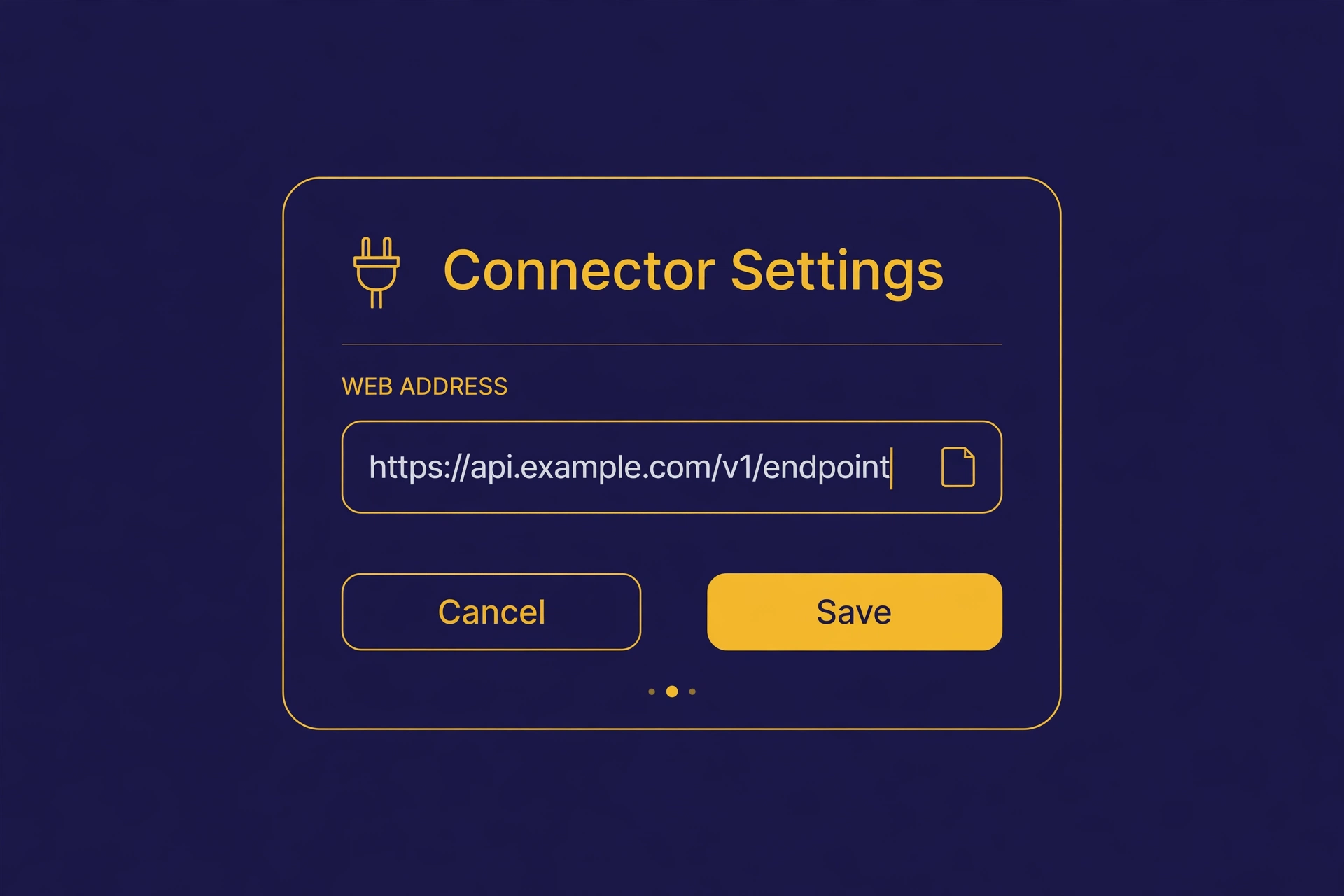
Then, in ChatGPT on the web, open Plugins, select +, then Add custom MCP server. Enter GovInbox as the name and https://mcp.getgovinbox.com/plugin as the server address. Follow the prompts to sign in with GovInbox and approve access. If your account still shows the older Apps menus, use Settings › Apps › Create instead.
Step 3: Ask in plain words
Now talk to it like a person. Try:
- “Find SDVOSB set-aside IT opportunities in Washington state.”
- “Search available award records for janitorial contracts at Joint Base Lewis-McChord and show the most recent match.”
You do not need to learn query syntax, and there is no dashboard to learn. You ask, and GovInbox answers from the watch data. Follow-up questions about an answer already on screen stay in the thread, the way a good chat should. If you need a fresh lookup, @mention GovInbox again in that message.
What happens when you ask
This is the part worth knowing. ChatGPT calls GovInbox's tools with the details of your search and drafts an answer from the records it gets back. Every record the tools return carries a link to the official source behind it, so you can check the details yourself.
The sources are the public ones a careful human would check by hand: SAM.gov notices, federal award records, and grant postings. Checking those by hand takes hours, and you can still miss the amendment that moved the deadline. GovInbox refreshes SAM.gov notices every four hours. Notices can change between refreshes, so check the original notice before you act on a deadline.
Check the official source links in GovInbox's results before you act. The tool points; the source proves.
Stuck?
The full setup guide lives at getgovinbox.com/connect, with instructions and screenshots for each assistant. The common snags:
- Can't find the connector option: check your plan. Custom MCP connections need a paid plan (Plus or higher). Free plans don't have the option.
- Your workspace blocks it: on a work account, an admin must permit custom MCP connections. Ask them.
- A token that does not work: tokens belong to one account. If a helper needs access, get them their own login.
If none of that matches what you are seeing, email [email protected] and describe exactly what is on your screen.
Your checklist
- Token stored in a password manager (not in chat text)
- Connector added in ChatGPT, authorization approved on GovInbox's page
- First query asked in plain words
Done with all three? Ask GovInbox which set-aside notices showed up this week.